
- Posted on
- • Other Electronics
Radmon.org Mini Monitor (lets me know when it is offline)
- Author
-
-

- User
- Mr Blinky
- Posts by this author
- Posts by this author
-
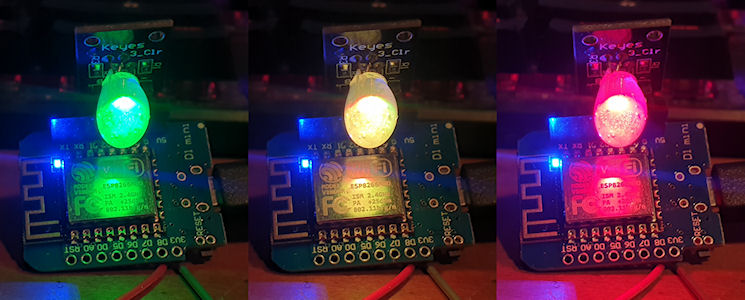
I knocked up a simple monitor to easily see if radmon.org is up or down. It uses an ESP8266 (Wemos D1 mini clone) and a single RGB LED. It simply polls radmon.org by asking for a response from the server. If it gets the reply it is expecting in a timely manner it lights the LED green. If it doesn't get the reply it wants, or times out, the LED changes to orange and sets a fail counter +1. If it receives the correct reply again it goes back to green, but after 3 consecutive failures the LED lights red. There really isn't much more to it. There are positions in the code where an alarm or something else could be activated and also deactivated. It has two modes - lightweight or not. In lightweight mode (lightweight = true) the monitor calls a simple HTML page with the text 'pong' in it. The other mode (lightweight = false) sends a query to the radmon.org API and the request is processed by radmon.org core. It then chucks out the same 'pong' for the monitor. The latter method uses more CPU cycles so unless some specific testing is being done the lightweight mode works fine.
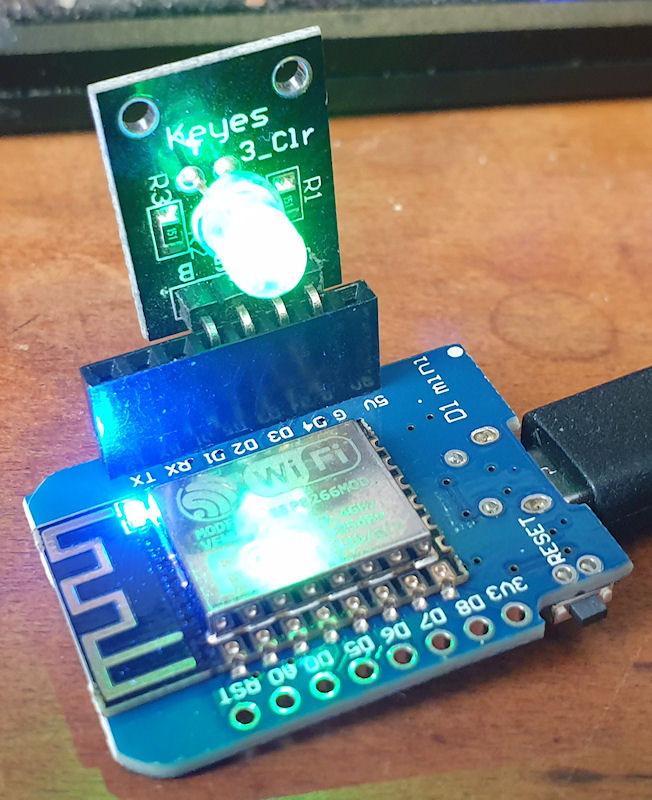
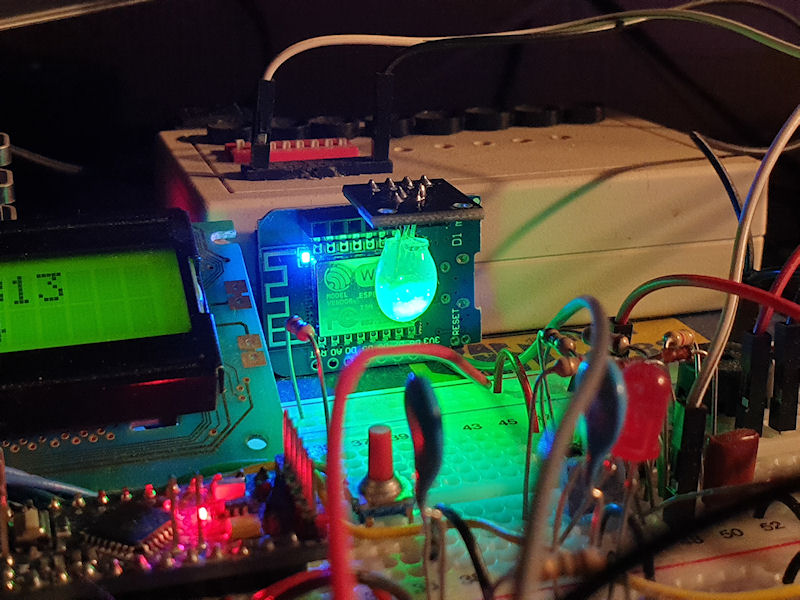
The LED is one from a kit or something. It has the resistors already on the PCB with the LED, so make sure you use the right resistors for each colour of the LED if you decide to make this. The LED was very bright (clear type) so I threw a splodge of hot glue on it to diffuse it. Now it looks a little like a small glowing grape as it sits at the back of my breadboard dev counter! 😄
//Radmon.org mini monitor by Simomax
//
//This uses an RGB LED to show the online status of radmon.org by requesting a reply from a web page there. If the monitor receives the
//reply it expects it will light up green. When it hasn't received a reply, or the wrong reply, it starts a fail counter and the LED lights
//yellow. After 3 subsequent failures the LED lights red. Upon receiving the correct reply the LED will light green again and the fail
//counter is reset.
//
//TThere are two methods of receiving the reply. One is a simple html page with the reply (lightWeight = true), and the other passes the
//query through the radmon api. The latter taking more time and using more cpu cycles. Unless specific testing it is recommended to use
//'lightWeight = true'. The interval in which the monitor polls can be configured with the 'interval' variable. Recommended times are 10-30
//seconds for 'lightWeight = true', and 30-60 seconds for 'lightWeight = false'.
//
//The LED colours can be customised to your preference and you can add extra code for external alarms and such below where commented.
//
//There is no license with this. You are free to do as you choose with this code. It may break. If it does, you get to keep all the parts.

int interval = 10;       //Poll every X seconds. Suggested time/operations: 10-30 seconds for light weight mode, 30-60 seconds for regular mode.
int lightWeight = true;  //Mode.
int counter = 0;
const char* URL = "";
#define red D2  // LED pins
#define green D3
#define blue D4
#include <Arduino.h>
#include <ESP8266WiFi.h>
#include <ESP8266WiFiMulti.h>
#include <ESP8266HTTPClient.h>
#include <WiFiClient.h>
ESP8266WiFiMulti WiFiMulti;

void ledsOff() {
  digitalWrite(red, LOW);
  digitalWrite(green, LOW);
  digitalWrite(blue, LOW);
}

void setup() {
  pinMode(red, OUTPUT);
  pinMode(green, OUTPUT);
  pinMode(blue, OUTPUT);
  ledsOff();
  Serial.begin(115200);
  Serial.println("Starting...");
  Serial.println();
  Serial.println();
  delay(1000);  // It is good to have a small delay between the ESP starting and initializing the WiFi. The LEDs light to save boredom.
  digitalWrite(red, HIGH);
  delay(1000);
  digitalWrite(green, HIGH);
  delay(1000);
  digitalWrite(blue, HIGH);
  delay(1000);
  ledsOff();
  delay(1000);
  WiFi.mode(WIFI_STA);
  WiFiMulti.addAP("YourWiFiSSID", "YourWiFiPassword");
}

void loop() {
  // Wait for WiFi connection
  if ((WiFiMulti.run() == WL_CONNECTED)) {
    WiFiClient client;
    HTTPClient http;
    //Serial.print("[HTTP] begin...\n");
    if (lightWeight == true) {
      URL = "http://radmon.org/radmon-simomax/ping.html";  // Very basic and fast html page.
    } else {
      URL = "http://radmon.org/radmon.php?function=ping";  // Passes the query through the radmon api, thus using more cpu cycles.
    }
    if (http.begin(client, URL)) {  // HTTP

      //Serial.print("[HTTP] GET...\n");
      Serial.println("ping...");
      // Start connection and send HTTP header
      int httpCode = http.GET();
      // HttpCode will be negative on error
      if (httpCode > 0) {
        // HTTP header has been sent and server response header has been handled
        //Serial.printf("[HTTP] GET... code: %d\n", httpCode);
        // File found at server
        if (httpCode == HTTP_CODE_OK || httpCode == HTTP_CODE_MOVED_PERMANENTLY) {
          String payload = http.getString();
          Serial.println(payload);
          if (payload == "pong")  // We got the reply we wanted. Green LED on.
          {
            ledsOff();
            digitalWrite(green, HIGH);
            counter = 0;
            //Serial.println("Fail counter reset");
          } else  // We got a reply, but it wasn't what we wanted. Green+red LED on. Set the fail counter + 1
          {
            ledsOff();
            digitalWrite(red, HIGH);
digitalWrite(green, HIGH);
            counter += 1;
            Serial.println("Fail count: " + (String)counter);
          }
        }
      } else {  // We didn't get a reply. Green+red LED on. Set the fail counter + 1
        Serial.printf("[HTTP] GET... failed, error: %s\n", http.errorToString(httpCode).c_str());
        ledsOff();
        digitalWrite(red, HIGH);
        digitalWrite(green, HIGH);
        counter += 1;
        Serial.println("Fail count: " + (String)counter);
      }
      http.end();
    } else {  // We couldn't connect. Green+red LED on. Set the fail counter + 1
      Serial.printf("[HTTP} Unable to connect\n");
      ledsOff();
      digitalWrite(red, HIGH);
      digitalWrite(green, HIGH);
      counter += 1;
      Serial.println("Fail count: " + (String)counter);
    }
  }
  if (counter >= 3) {  // When the fail counter reaches 3 set the LED red.
    ledsOff();
    digitalWrite(red, HIGH);
    //*************** Your alarm ON code can go here ***************
  } else {
    //*************** Your alarm OFF code can go here ***************
  }
  delay(interval * 1000);
}
Archived from radmon.org - originally posted 20/03/2024
Add Comment
This policy contains information about your privacy. By posting, you are declaring that you understand this policy:
- Your name, rating, website address, town, country, state and comment will be publicly displayed if entered.
- Aside from the data entered into these form fields, other stored data about your comment will include:
- Your IP address (not displayed)
- The time/date of your submission (displayed)
- Your email address will not be shared. It is collected for only two reasons:
- Administrative purposes, should a need to contact you arise.
- To inform you of new comments, should you subscribe to receive notifications.
- A cookie may be set on your computer. This is used to remember your inputs. It will expire by itself.
This policy is subject to change at any time and without notice.
These terms and conditions contain rules about posting comments. By submitting a comment, you agree with these rules:
- Although the administrator will attempt to moderate comments, not all comments can be moderated at all times.
- You acknowledge that all comments express the opinions of the original author and not those of the administrator.
- You will not post material which is knowingly false, obscene, hateful, threatening, harassing or invasive of privacy.
- The administrator has the right to edit, move or remove any comment for any reason and without notice.
Failure to comply with these rules may result in being banned from submitting further comments.
These terms and conditions are subject to change at any time and without notice.
Comments